Configure CDN Cache Rules
Objective
This guide provides instructions on how to configure Content Delivery Network (CDN) Cache Rules using the F5 Distributed Cloud CDN service. Using the CDN service, you can enhance application performance by caching content across a geographically distributed network of servers that serve content with high scale and low latency.
Cache Control
When you enable caching in the F5 Distributed Cloud CDN service, the default is to cache the contents of your entire domain based on the cache-control header values provided by the origin and correspondingly to purge the cache of your entire domain. However, you also have the ability to provide more granular cache rules that can define cache policies on a per-asset basis from the same origin, which will let you optimize cache hit ratios based on the TTL of the cache, defining what is cacheable, and more which provides content that is up-to-date in the quickest, most reliable way. Your cache rules and policies can also allow selective deletion of content from the cache, so it does not negatively impact site performance.
The CDN service will honor the cache-control header returned by your origin application. If cache-control is not returned by your origin application, the CDN service does not consider the response cacheable. If this is not the desired behavior, it is recommended that you set the cache control using the Cache TTL option in CDN configuration. In case the cache control is set in the application header, the behavior is as follows:
- If the cache TTL is set to
Default Cache TTL, Configured Cache TTL is applied only if origin is sending any Cache-control headers. - If the cache TTL is set to
Override Cache TTL, that directive is applied irrespective of Cache-control header sent by origin.
Set-Cookie Response Header and Cache Control
In case the set-cookie response header is set by the origin server, then the CDN service treats it as non-cacheable regardless of the cache-control directive set in origin's response or default/override TTL set on the CDN distribution.
The set-cookie header indicates that the response pertains to a specific user and should not be cached and served to other users.
Note: In order for CDN service to cache the asset, the following are the required criteria:
- HTTP request methods must be one of
GETorHEAD.- HTTP response codes must be one of 200, 206, 301, or 302.
- Response must contain one of the cache directives
cache-controlorexpires.
Configuration
Create a CDN Cache Rule
Step 1: Log into Console and create new CDN Cache Rule.
-
Log into Console.
-
Click the Content Delivery Network service. The CDN distribution configuration page opens.
-
Go to Manage > CDN Cache Rules.
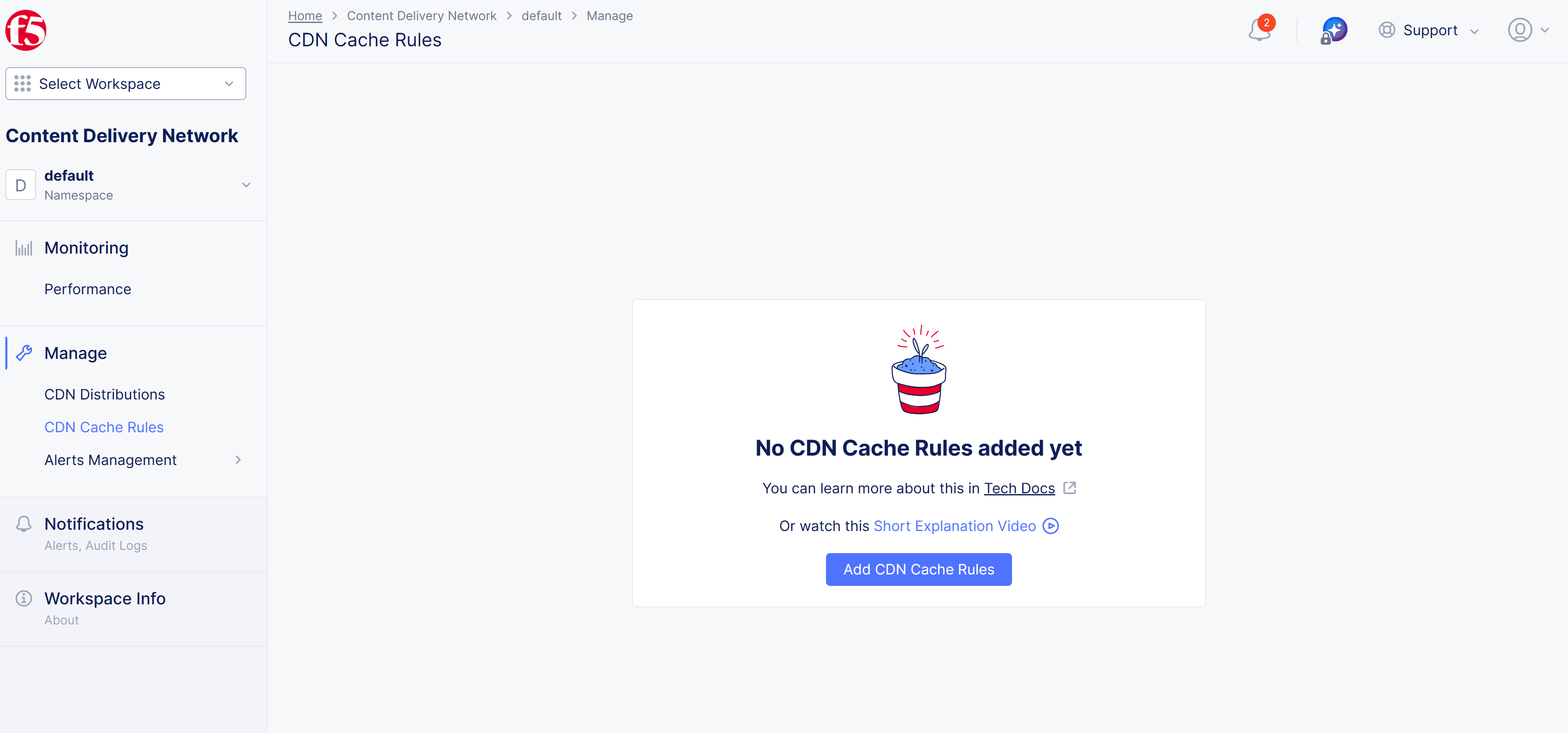
Figure: CDN Cache Rules Page
- Click Add CDN Cache Rules.
Step 2: Configure metadata.
-
In the Name field, enter a name for the object.
-
Optionally, select a label and enter a description.
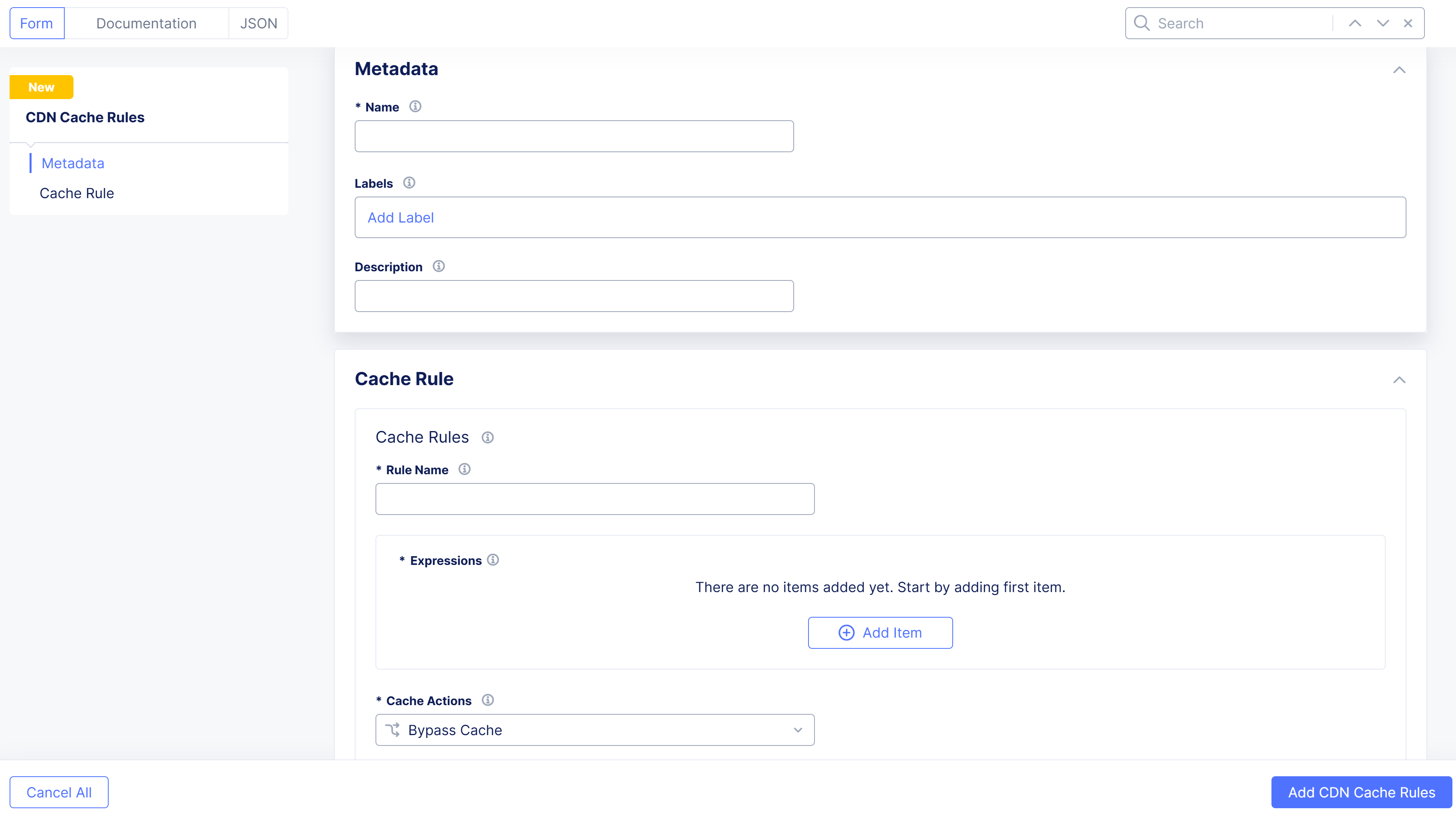
Figure: Add CDN Cache Rule
Step 3: Configure Cache Rules.
-
In the Cache Rules section, create rules to determine the content that is or is not cached:
-
Enter a name in the Rule Name` field.
-
Click Add Item in the Expressions section. If you create more than one expression, the rule will execute if any of the expressions match.
-
Enter a name in the Expression Name field and click Add Item in the Terms Section.
- Configure the match condition by using the Path Match, Query Parameters, Cache Headers, and/or Cookie Matchers.
- Click Apply to save the match condition.
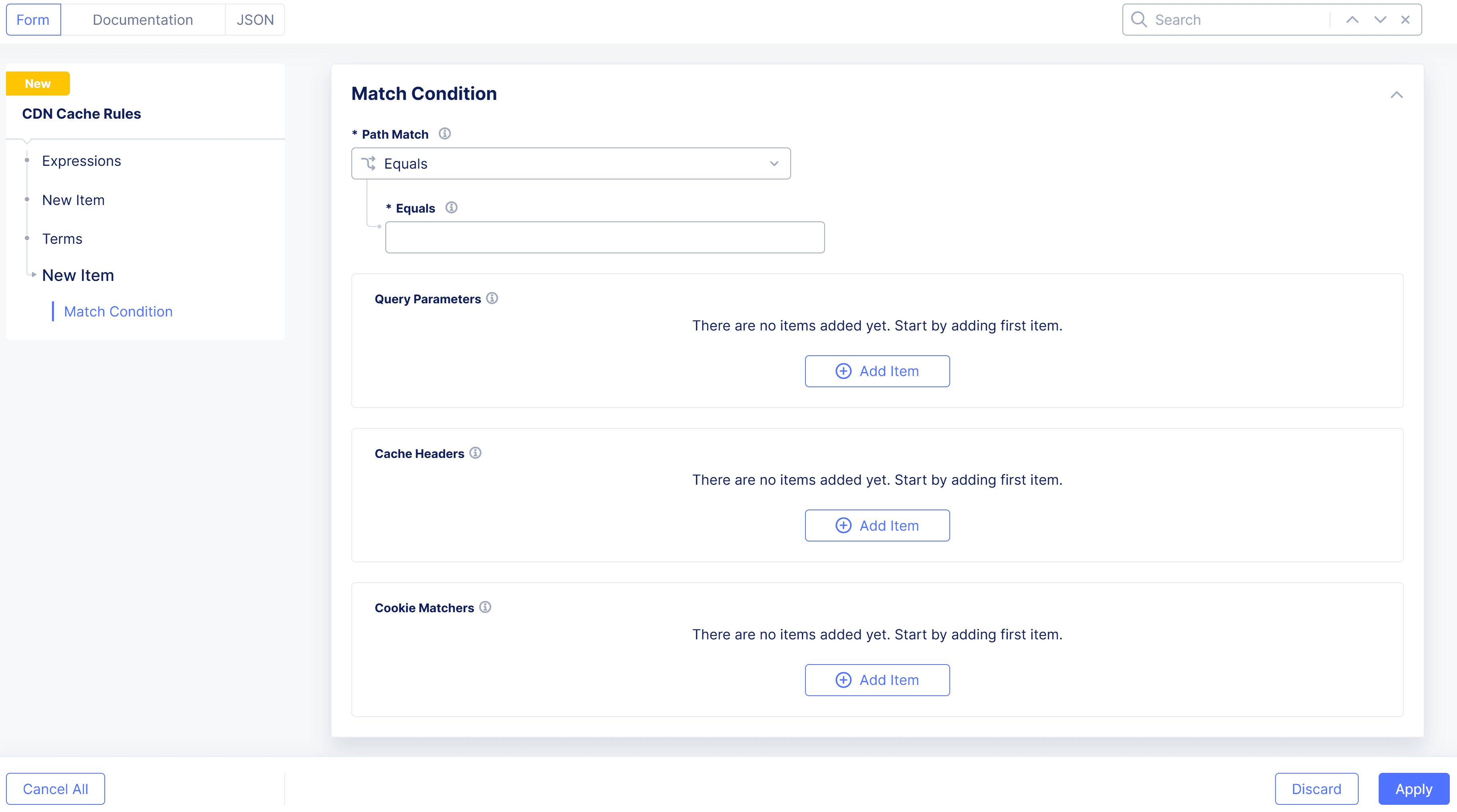
Figure: Add Expression
- Click Apply to save the expression name.
-
-
Select an option in the Cache Actions section. The option you select will determine what happens to your cache if one of your expressions matches.
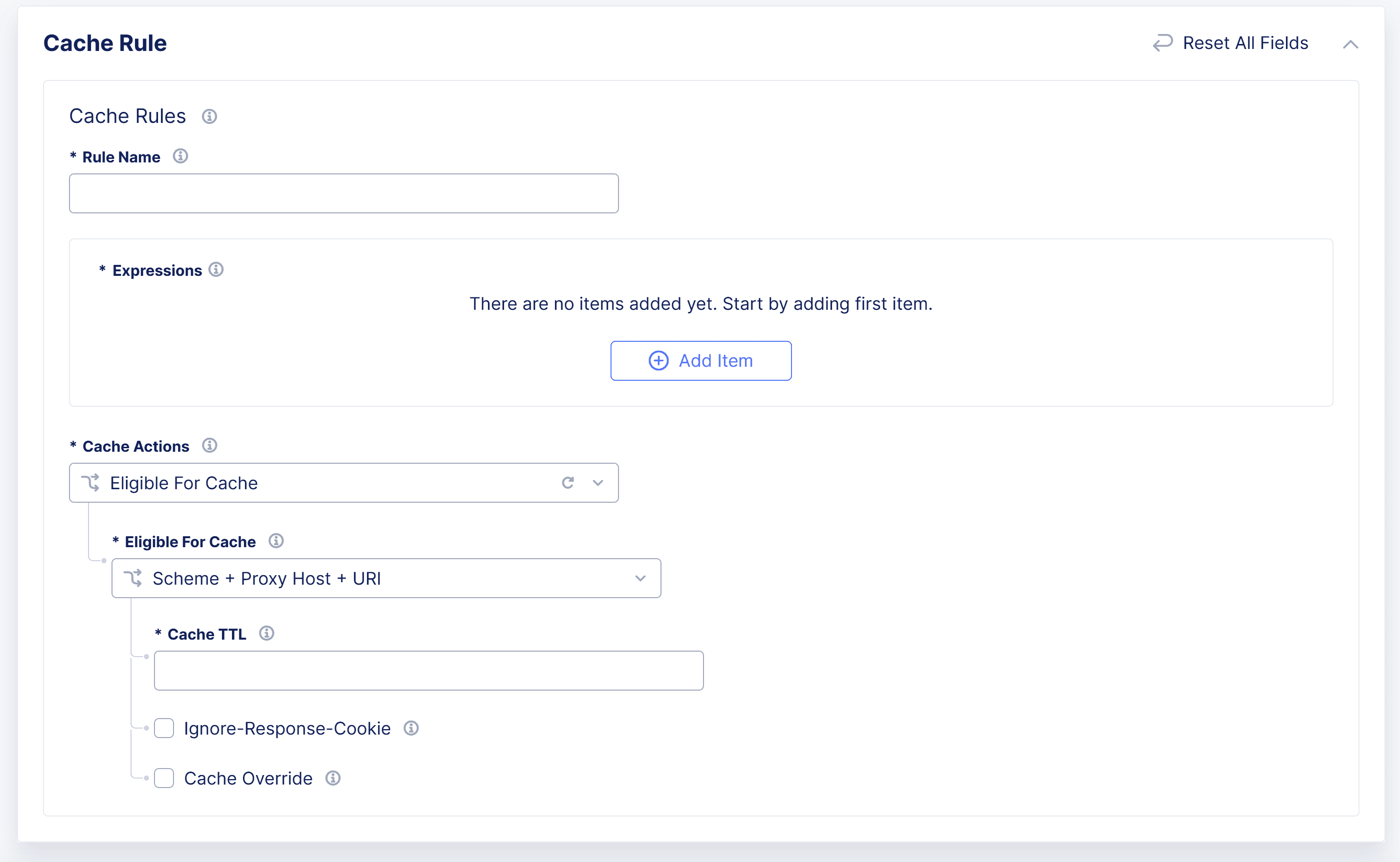
Figure: Cache Action
-
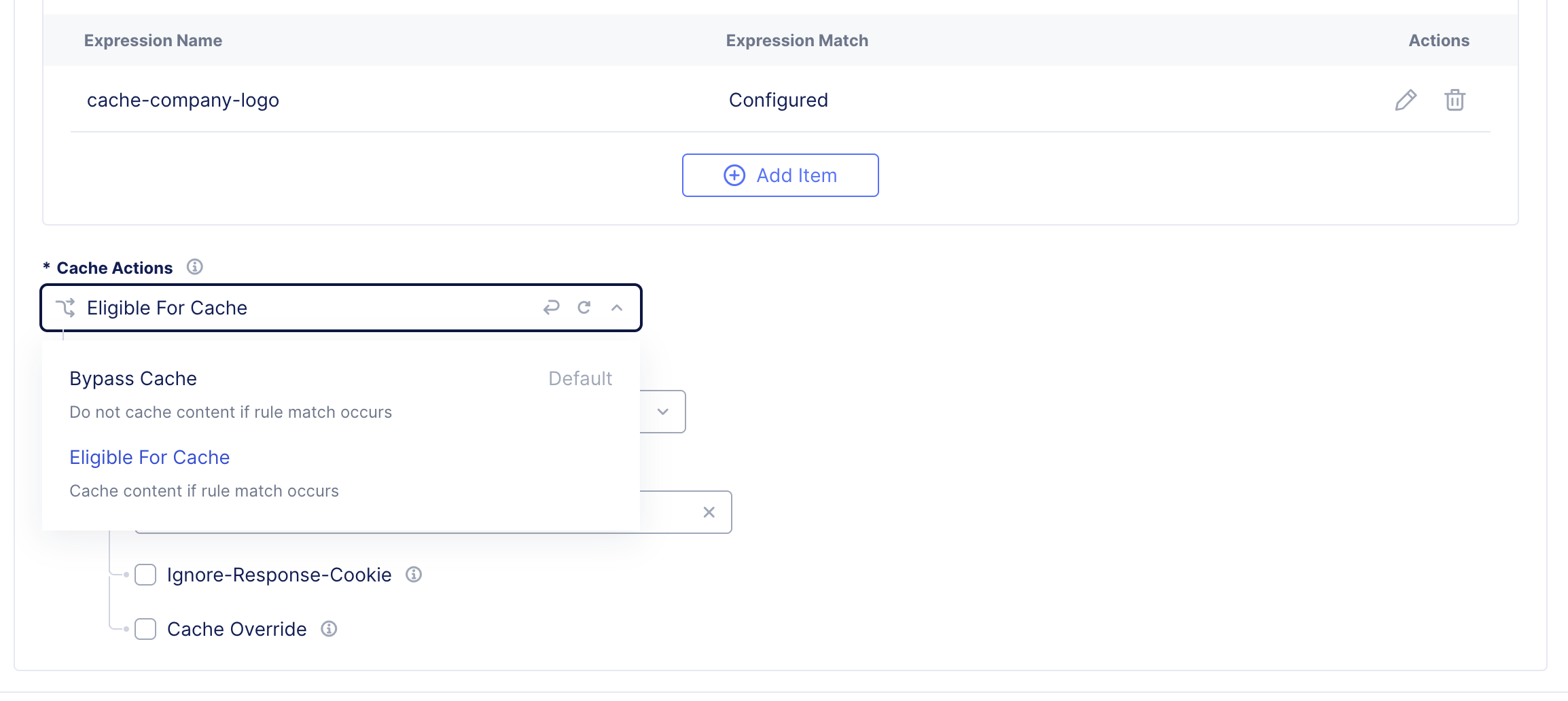
Bypass Cache will not cache the resource/content if the rule matches.
-
Eligible for Cache will cache the resource/content based on the following fields:
- In the Eligible for Cache field, click Scheme + Proxy Host + URI or Scheme + Proxy Host + Request URI.
- In the Cache TTL field, enter the time the cached resource/content will be valid (Time To Live).
- Check the Ignore-Response-Cookie checkbox if you want to cache the response even if the set-cookie header is present (Override set-cookie).
- Check the Cache Override checkbox if you want to honor a cache override.
-
-
-
Click Add CDN Rule.
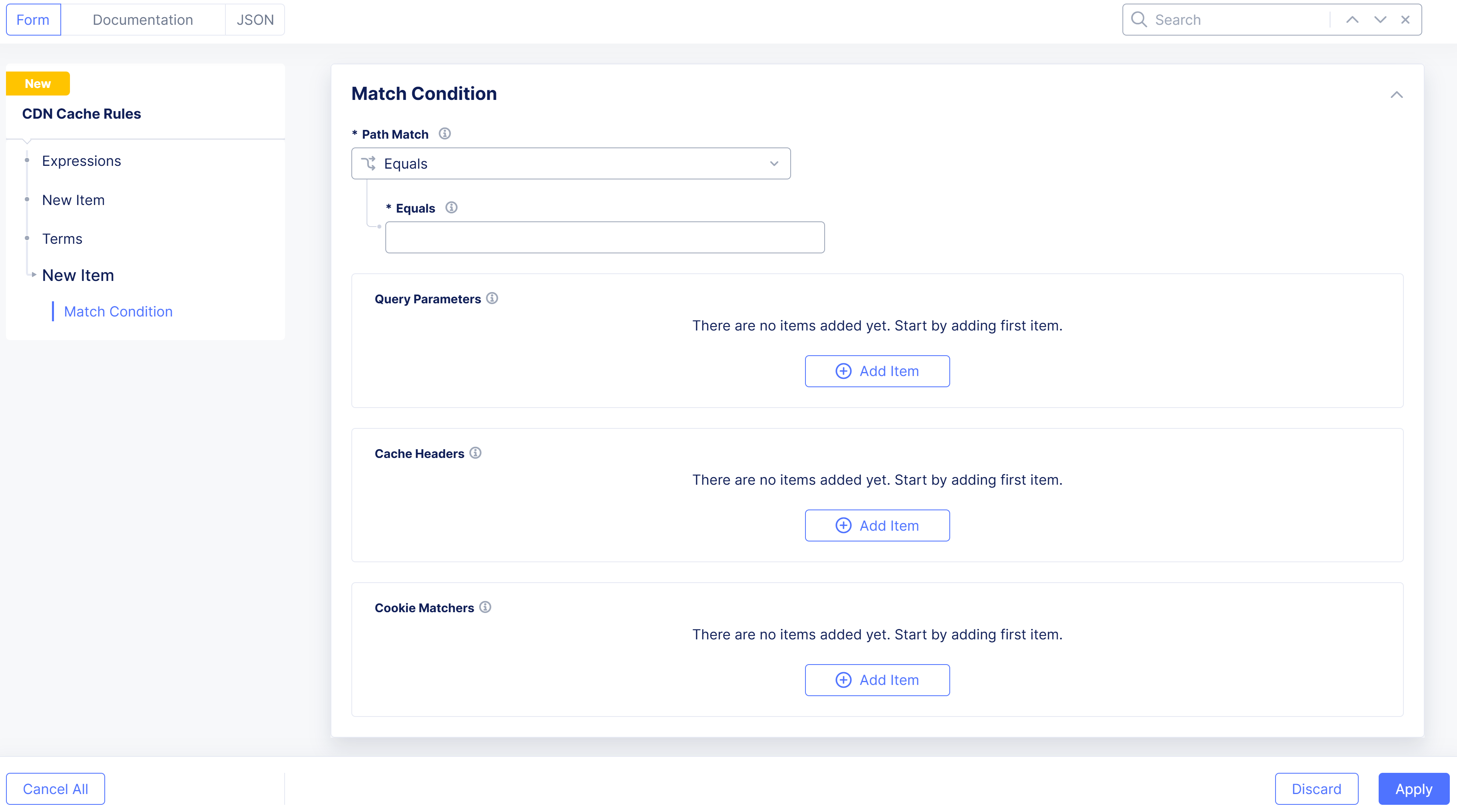
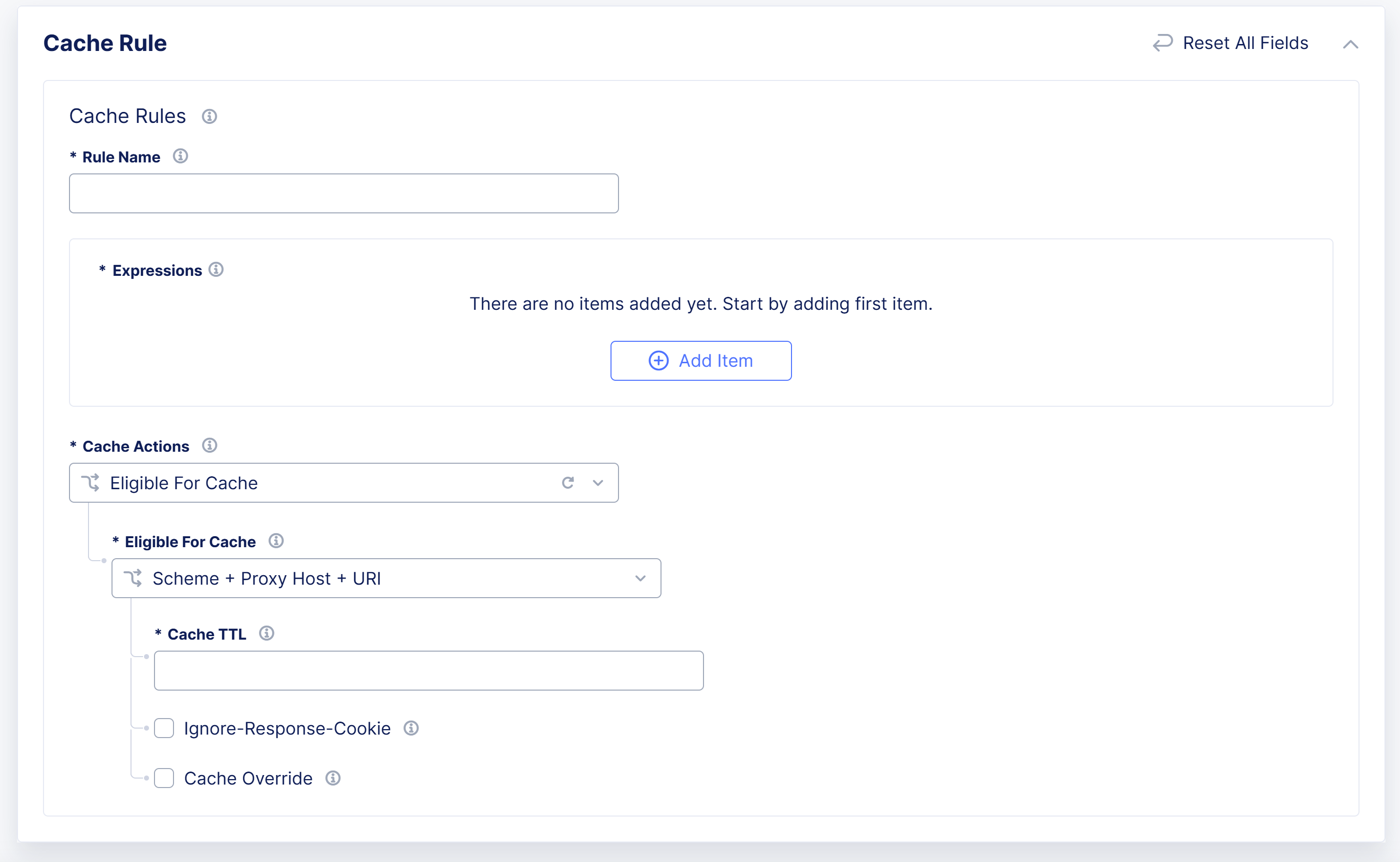
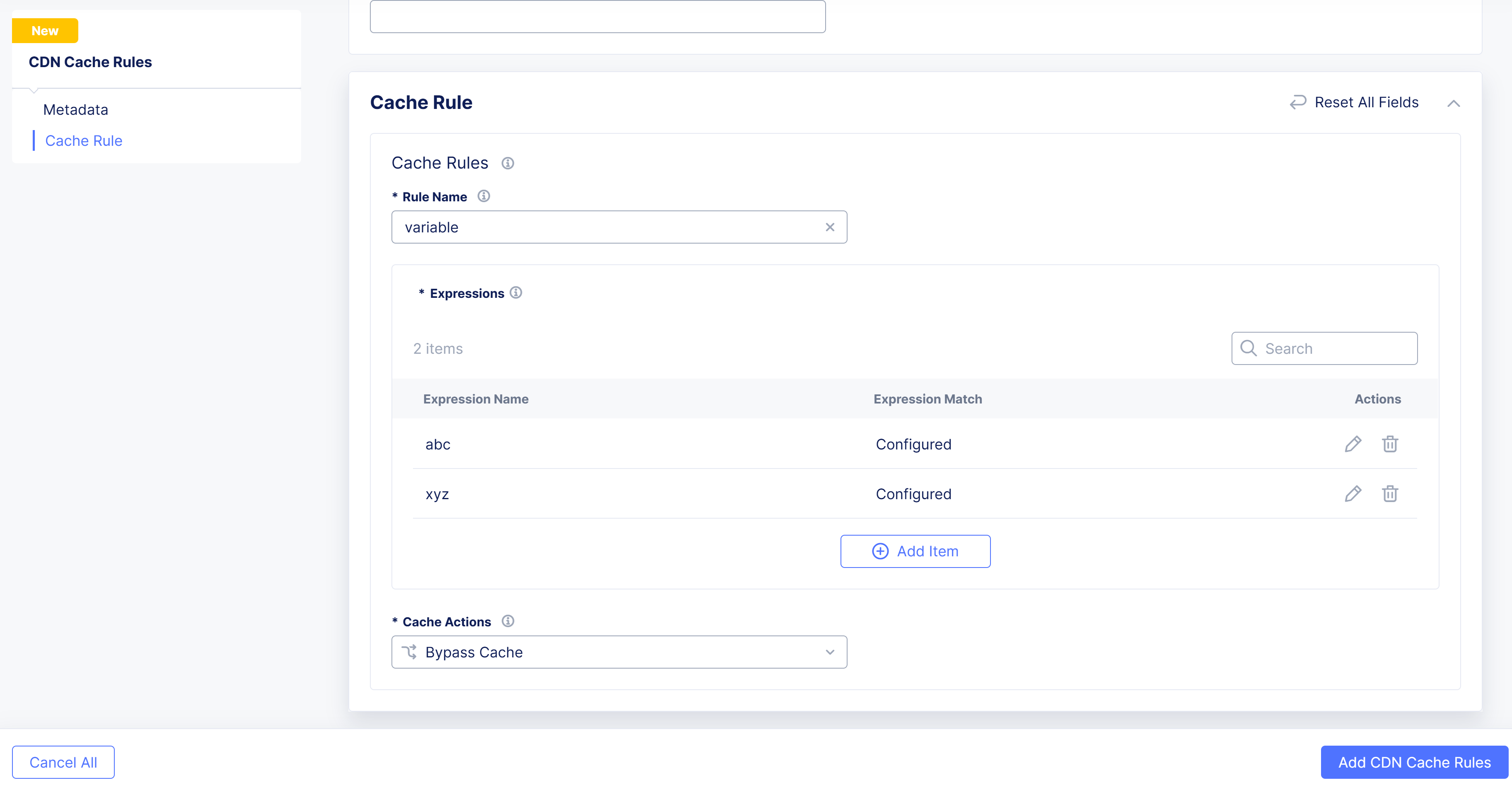
Figure: CDN Cache Rule
Note: CDN Cache Rules are processed in the order they are listed in, and the first match gets applied.
Example Cache Rules
CDN caching stores frequently requested assets at edge locations close to users. This reduces latency, bandwidth consumption, and load on your origin (especially during traffic spikes). By defining precise cache keys (which headers, cookies, and query parameters create variants) and using long-lasting versioned URLs, you can deliver consistently fast responses while minimizing costs and avoiding stale content. Thoughtful rules also prevent cache fragmentation from tracking parameters, ignore sensitive cookies to avoid personalization leaks, and only vary when necessary (for example, by image format or theme).
The following examples will take you through the key steps of creating a cache rule. Follow along in the F5 Distributed Cloud Interface to get hands-on experience before building your own cache rules.
Note: The steps provided in this section are only examples. Ensure that you use appropriate settings as per your company policies.
Example 1:Company-wide shared logo.
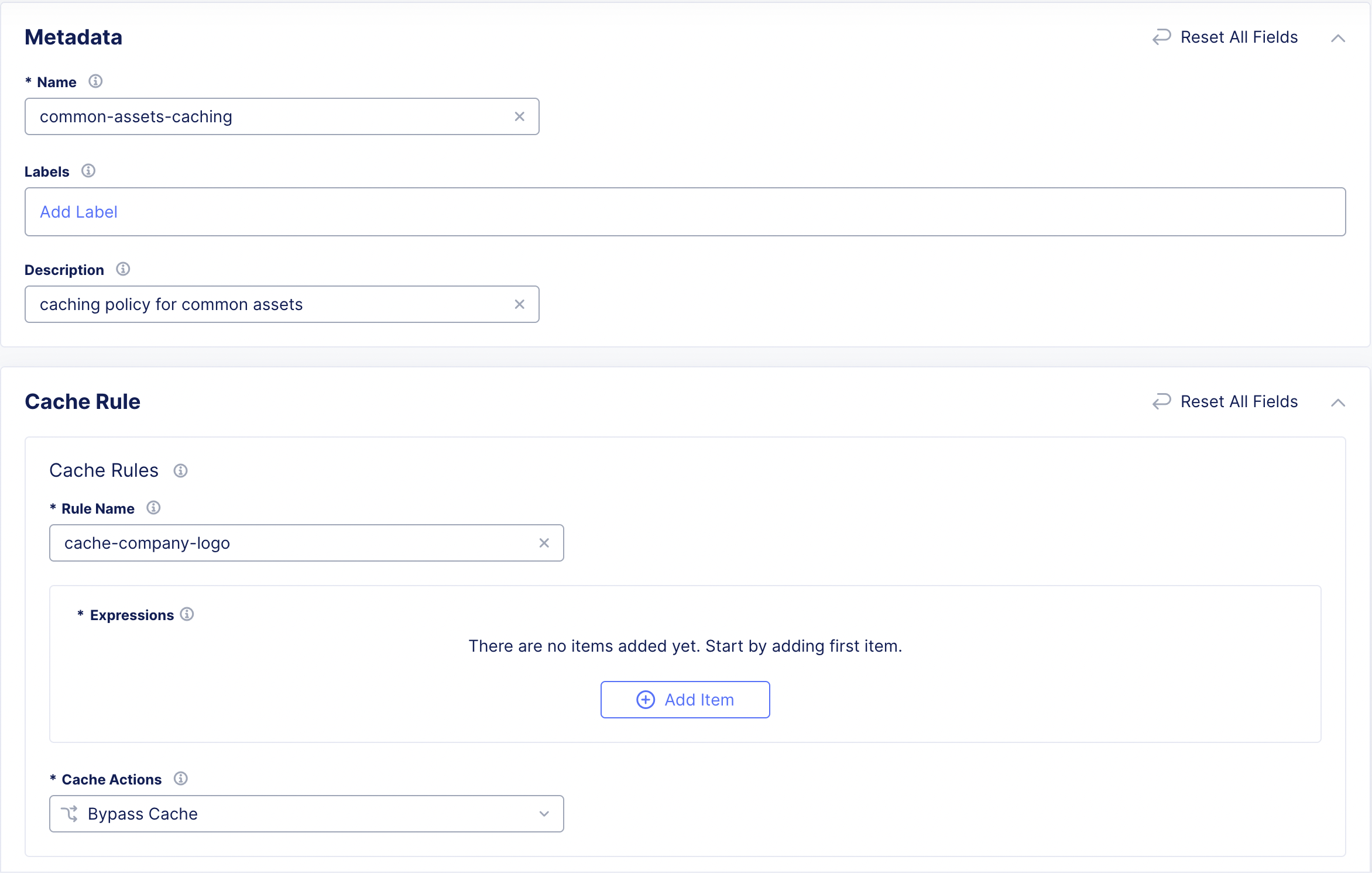
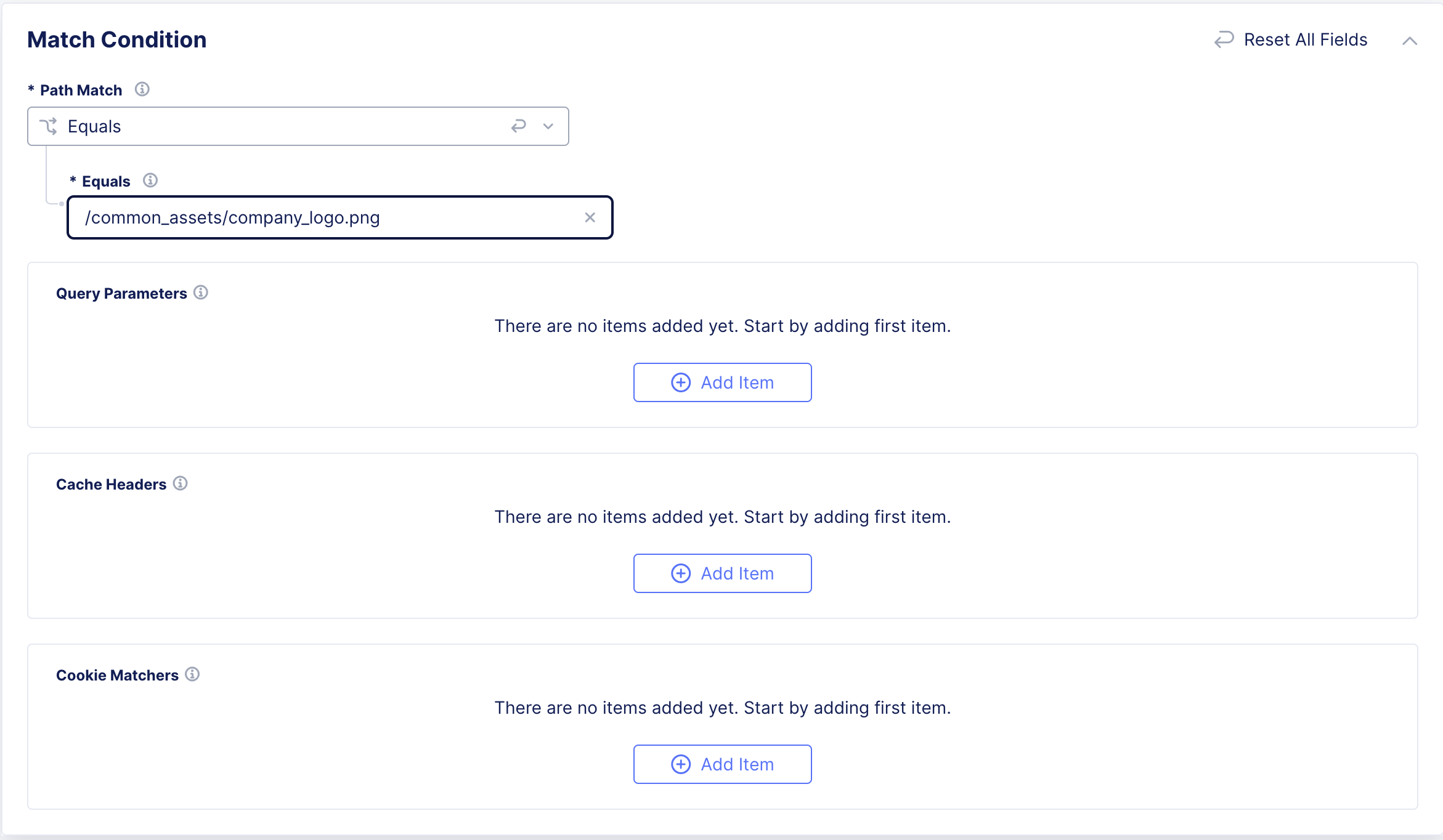
You can create cache rules to store company-wide shared assets such as logos. For example, if the /common_assets/company_logo.png must be cached, follow these steps to create the corresponding cache rule:
- Enter the metadata and the rule name for identification.
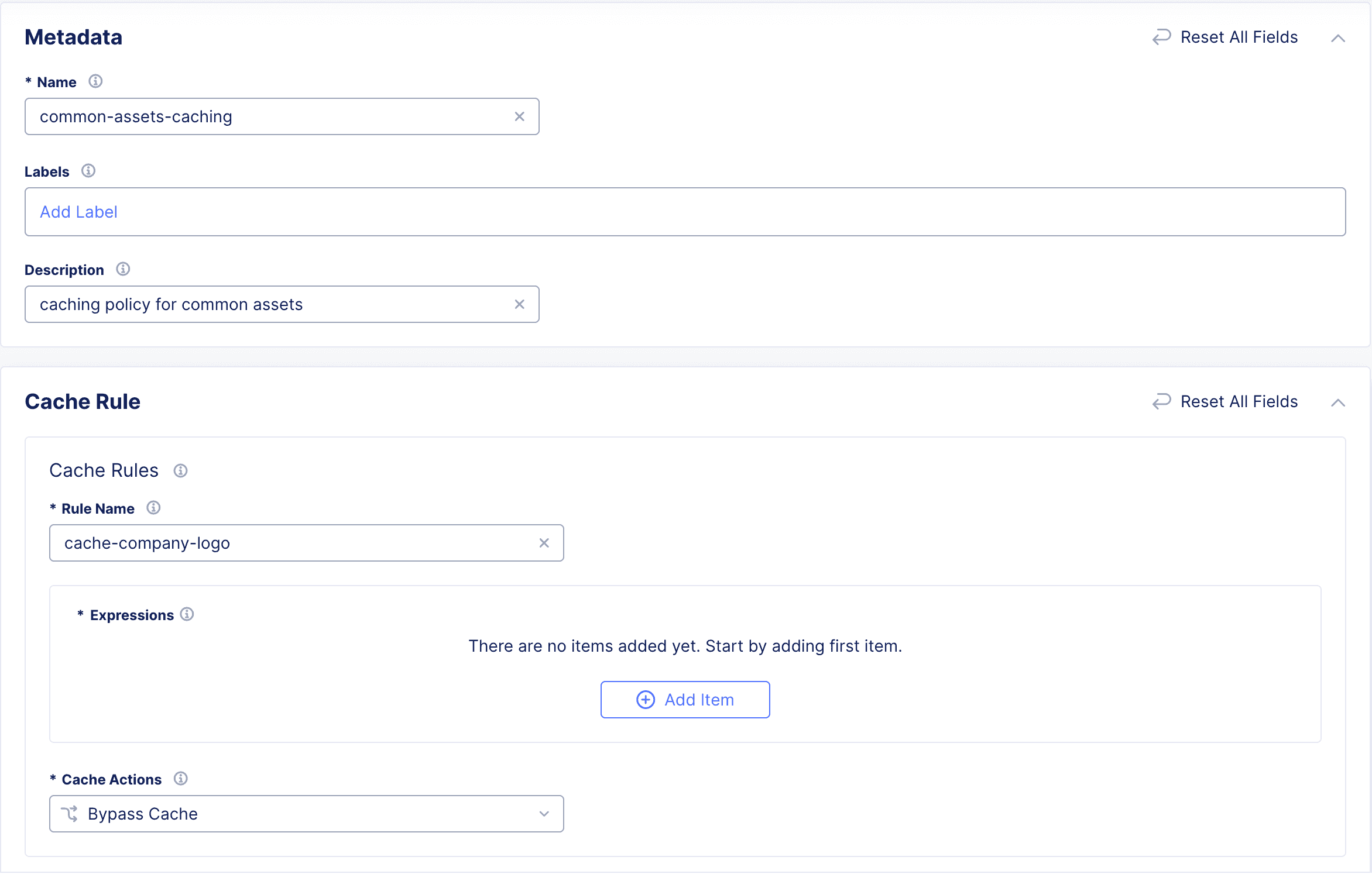
Figure: CDN Cache Rule Metadata
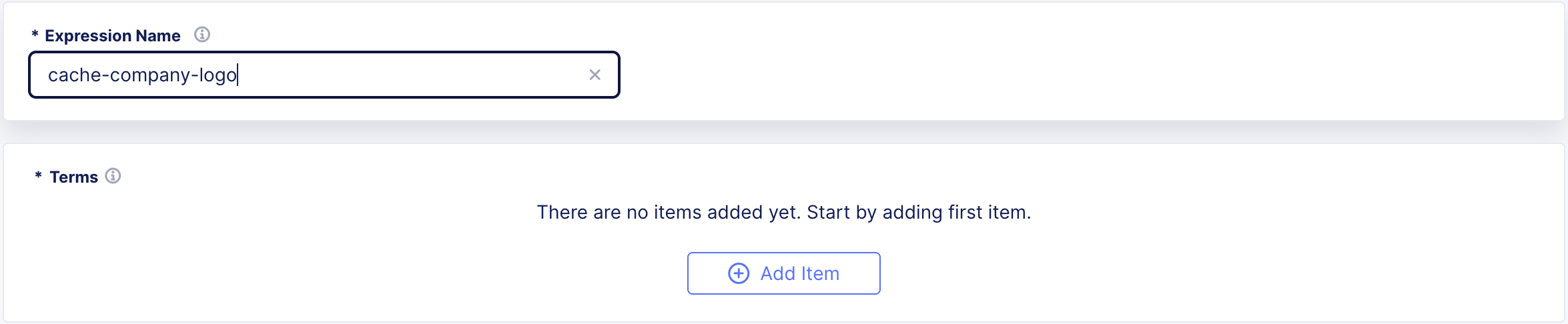
- Select Add Item, and enter the expression of identification.
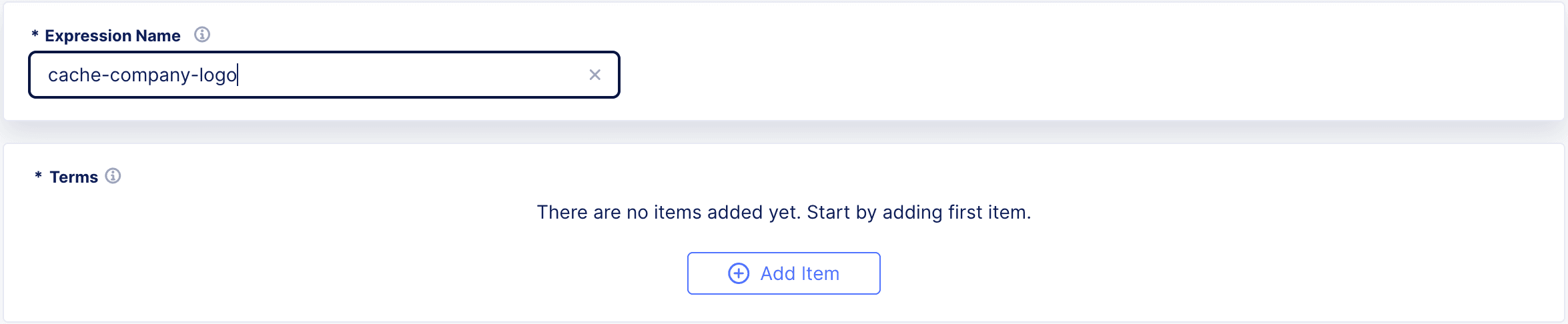
Figure: CDN Cache Rule Expression
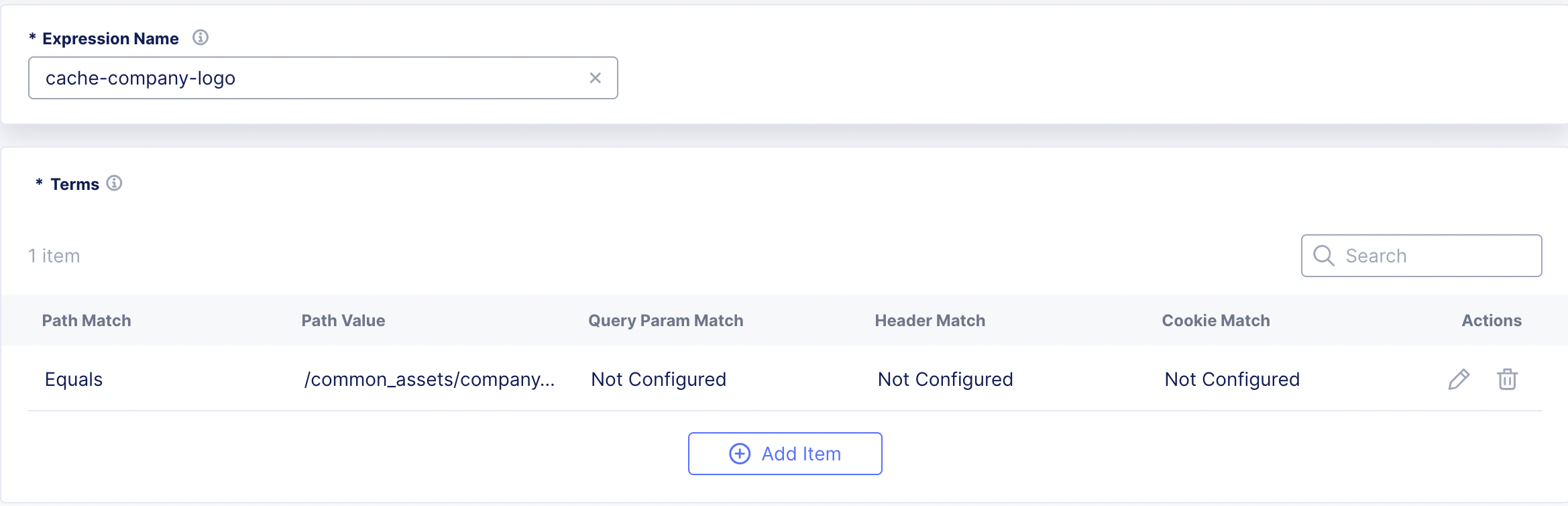
- Add the terms to match on the specific path, and then click Apply.
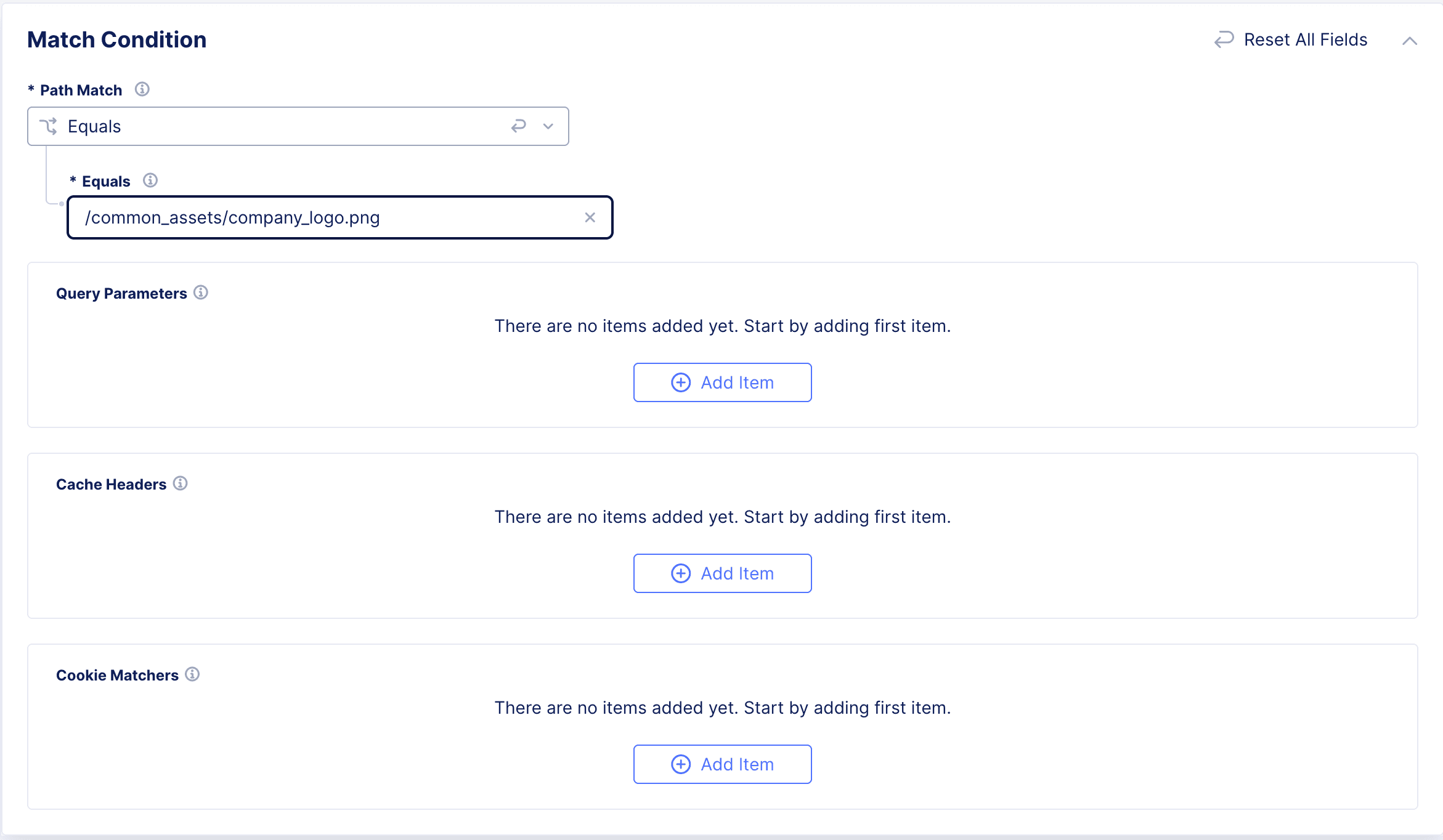
Figure: CDN Cache Rule - Path Match
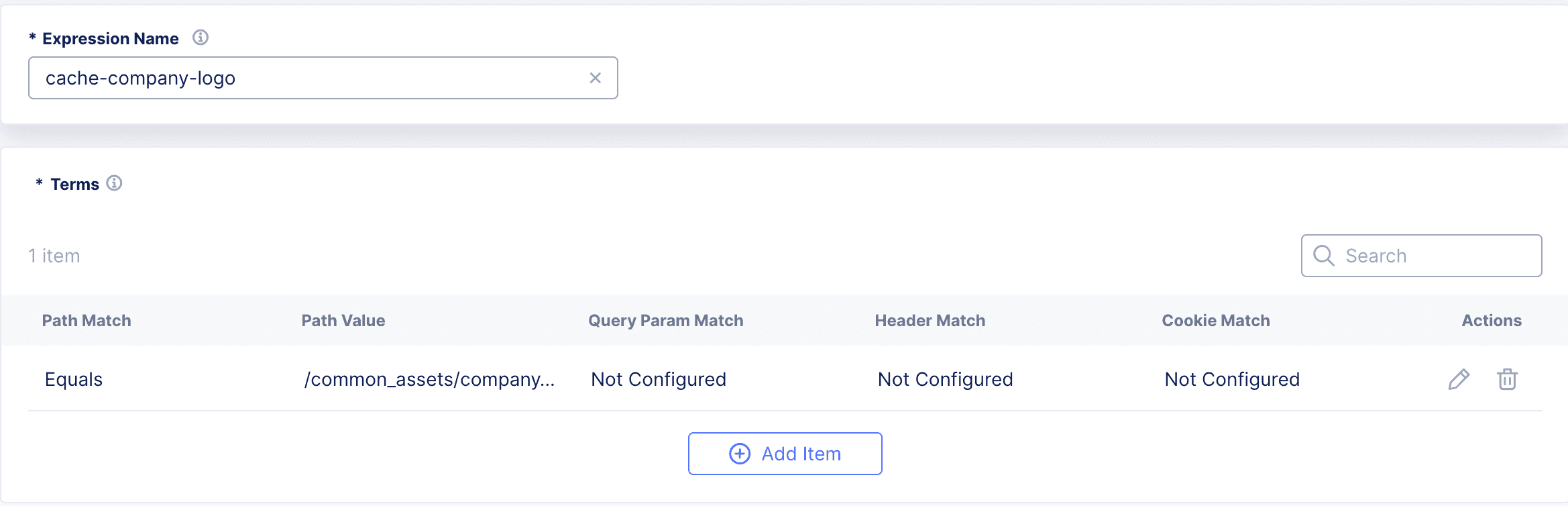
Figure: CDN Cache Rule
- Select Eligible for cache and set the TTL.
This will create a cache rule which will cache the company_logo.png file for the set TTL.
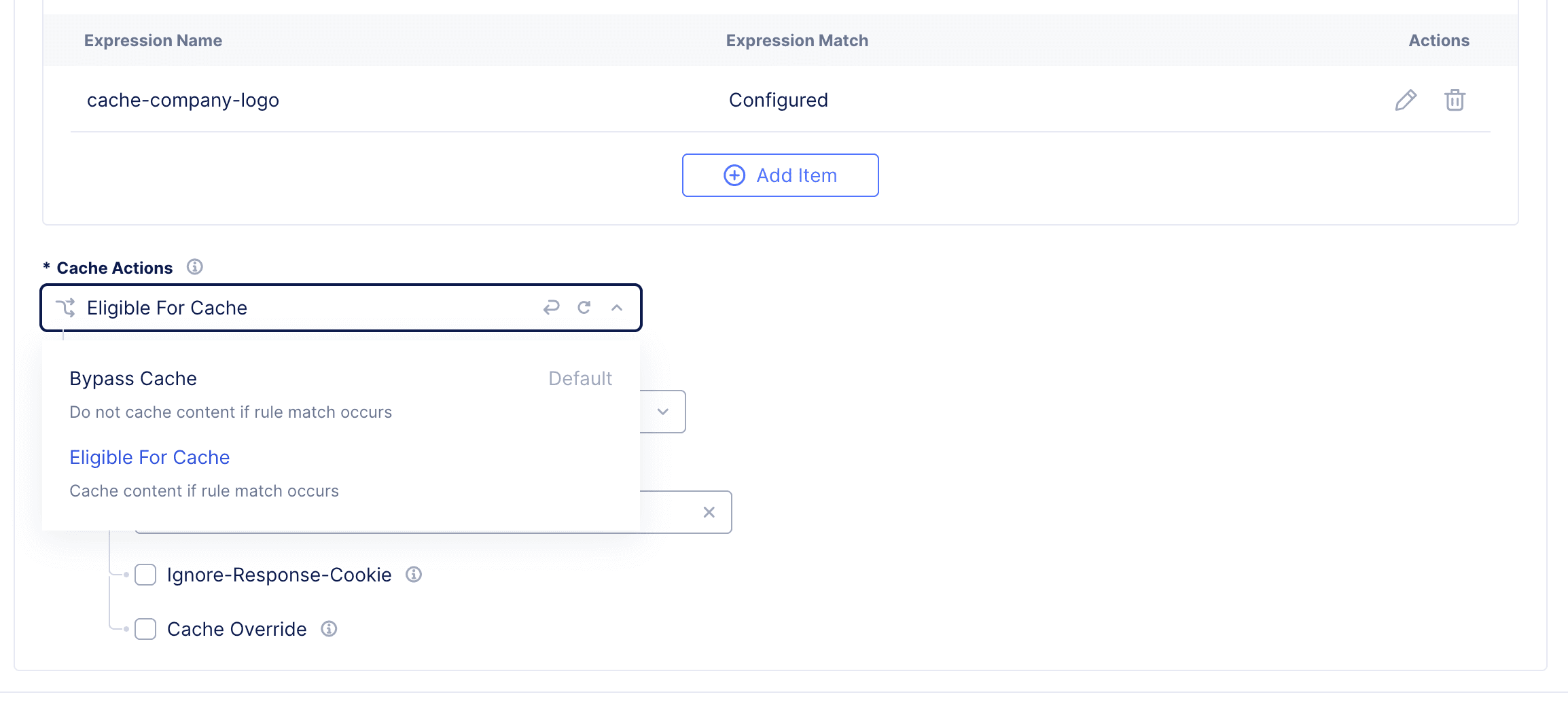
Figure: CDN Cache Rule TTL
Example 2:Group Cache Policies.
A combination of expression and terms will assist in grouping cache policies together without the need to create multiple rules.
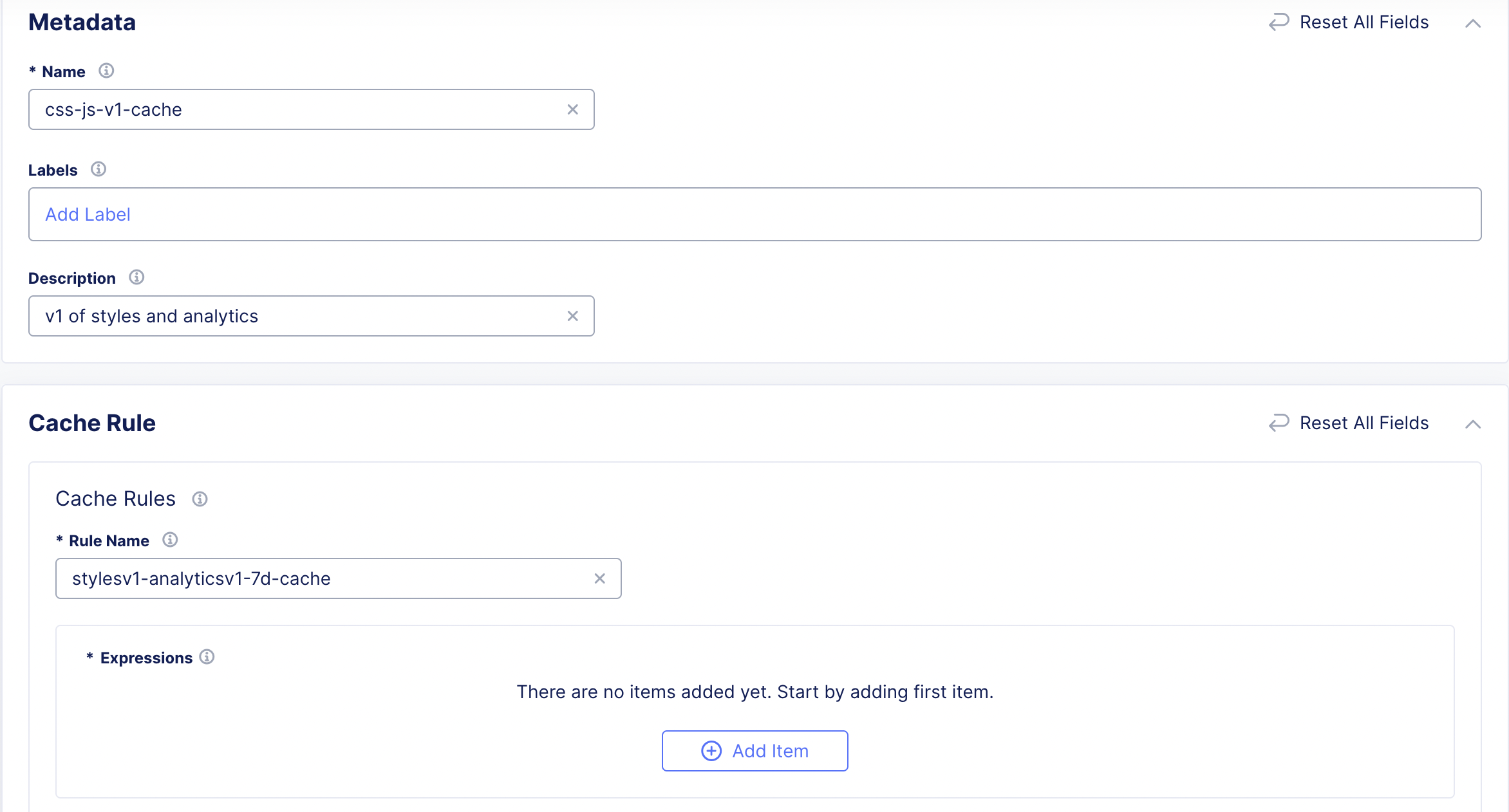
For example, if the /assets/js/analytics_v1.js and /assets/css/styles_v1.css needs to be cached for 7 days, follow these steps to create the corresponding cache rule:
- Create a new cache rule.
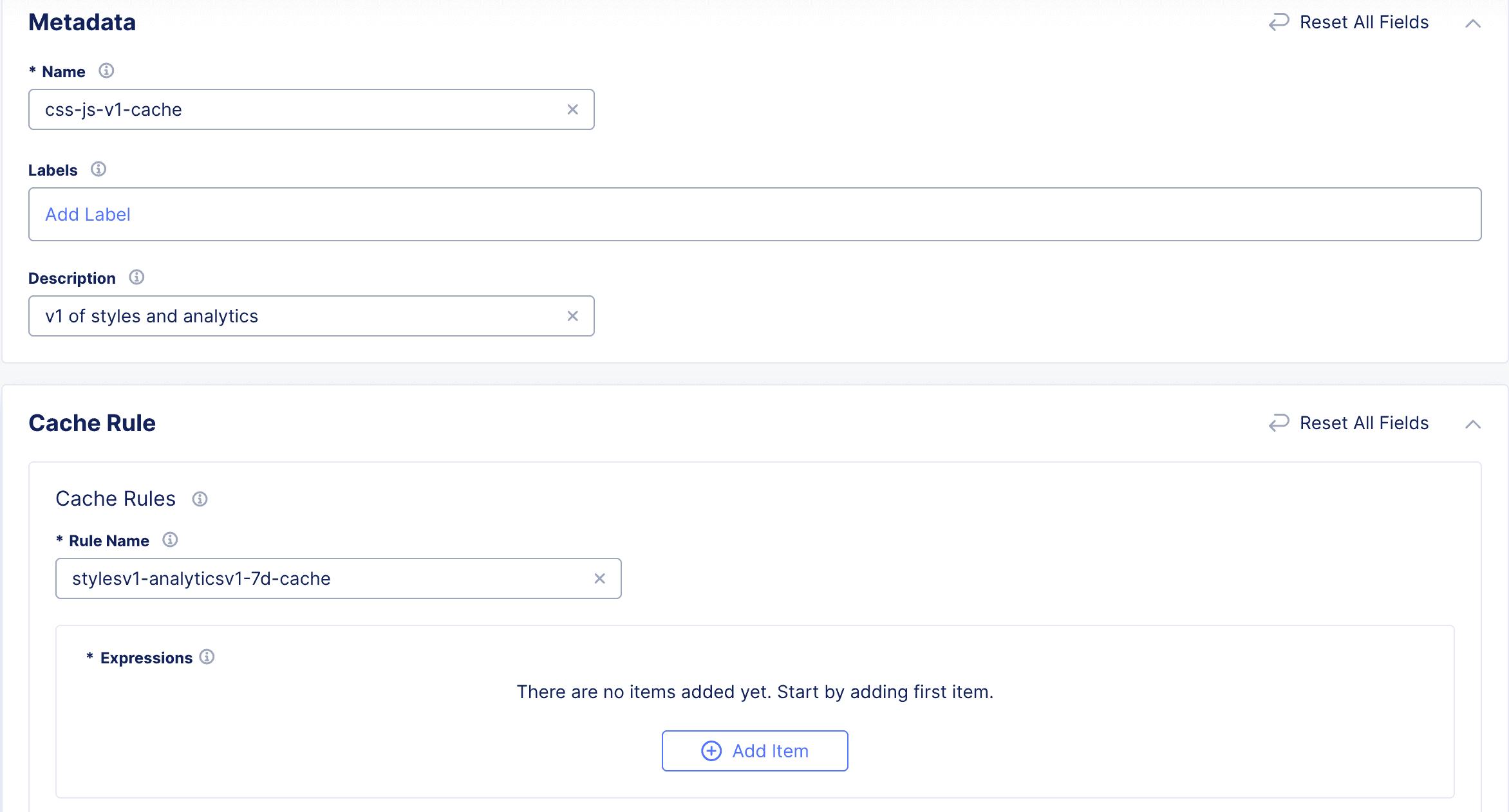
Figure: Create CDN Cache Rule
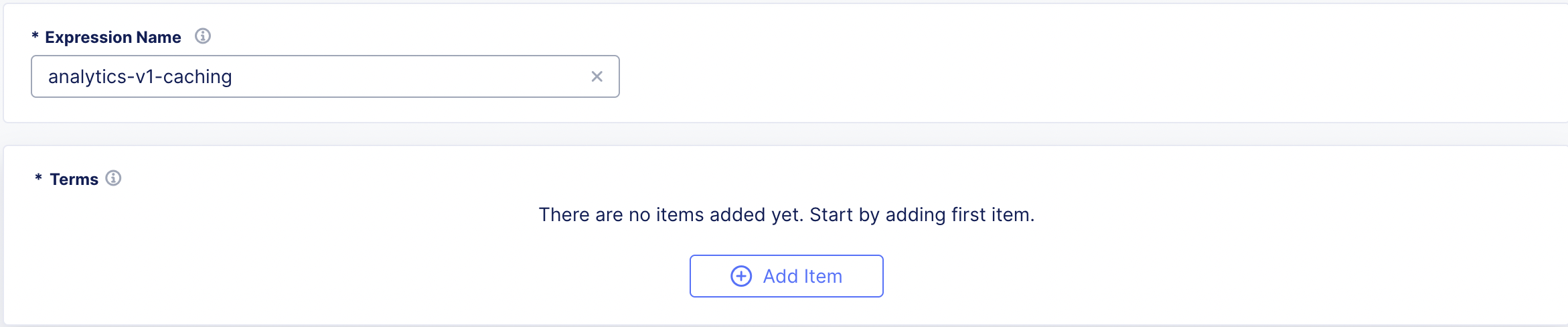
- Add a new expression for the first file.
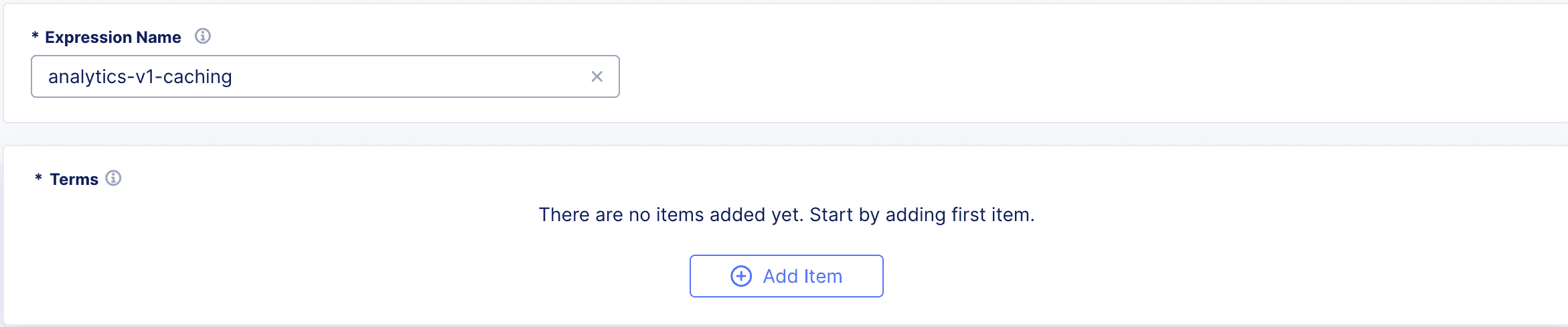
Figure: CDN Cache Rule Expression
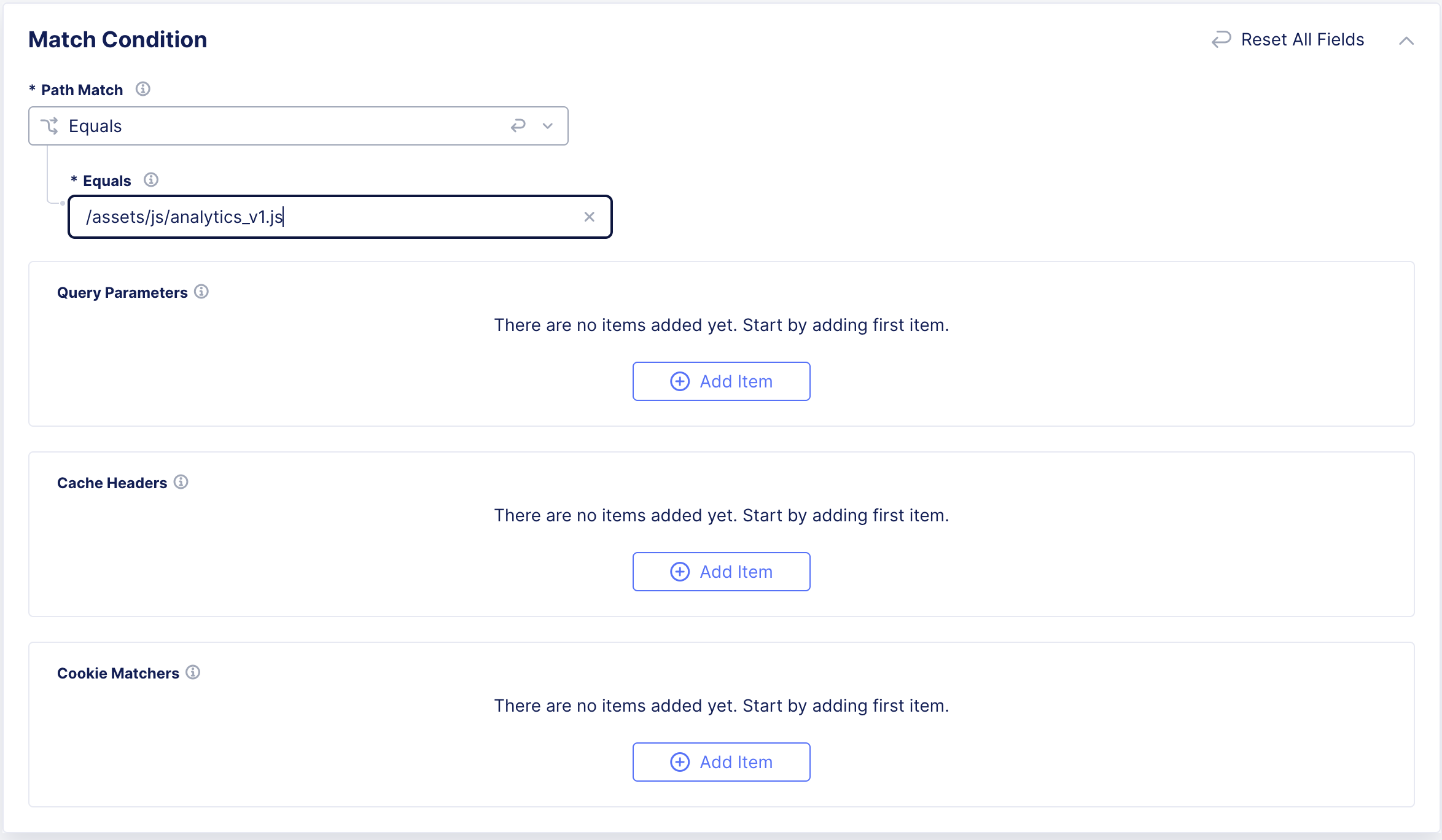
- Add the matching terms.
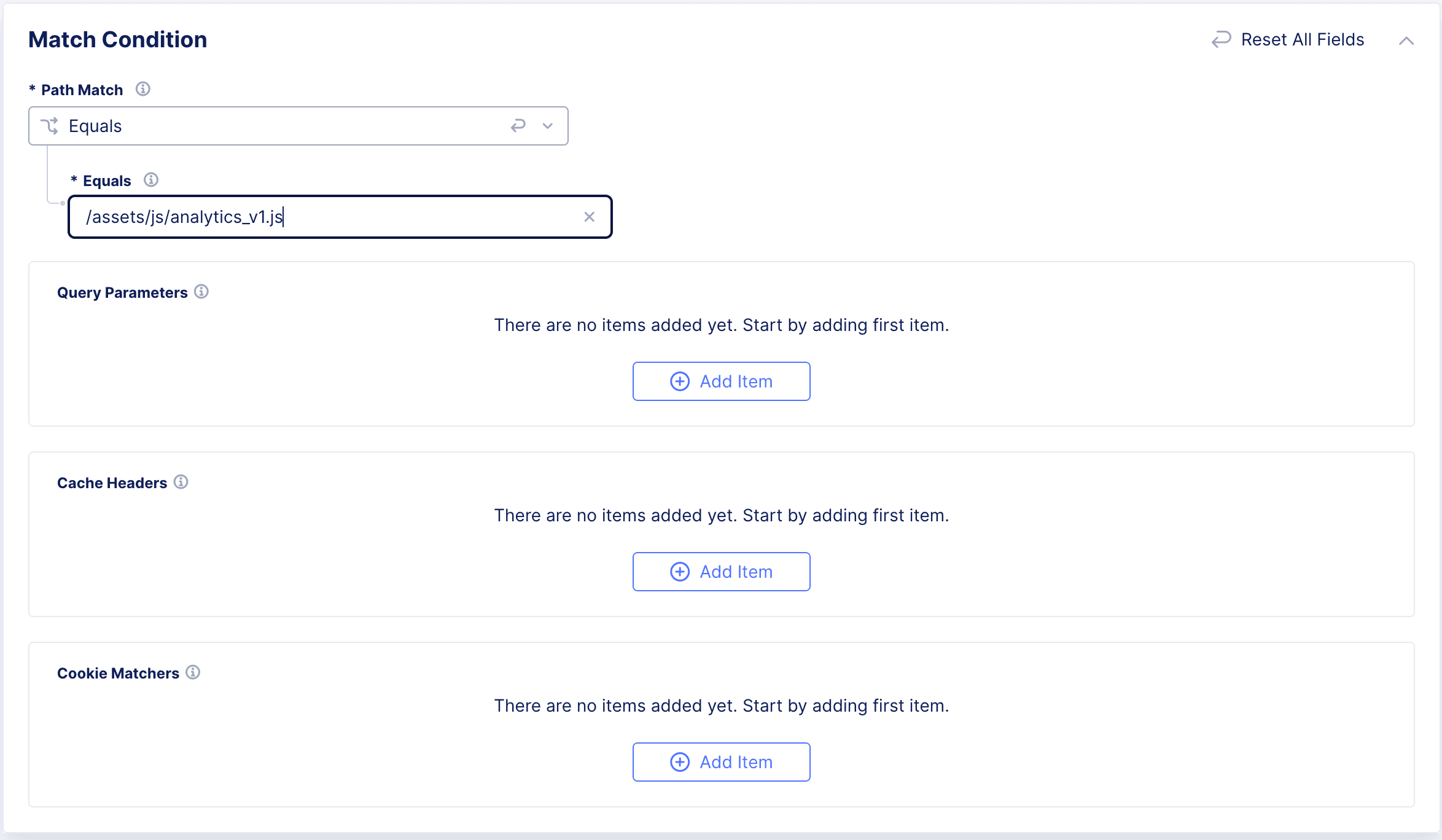
Figure: CDN Cache Rule Path Match
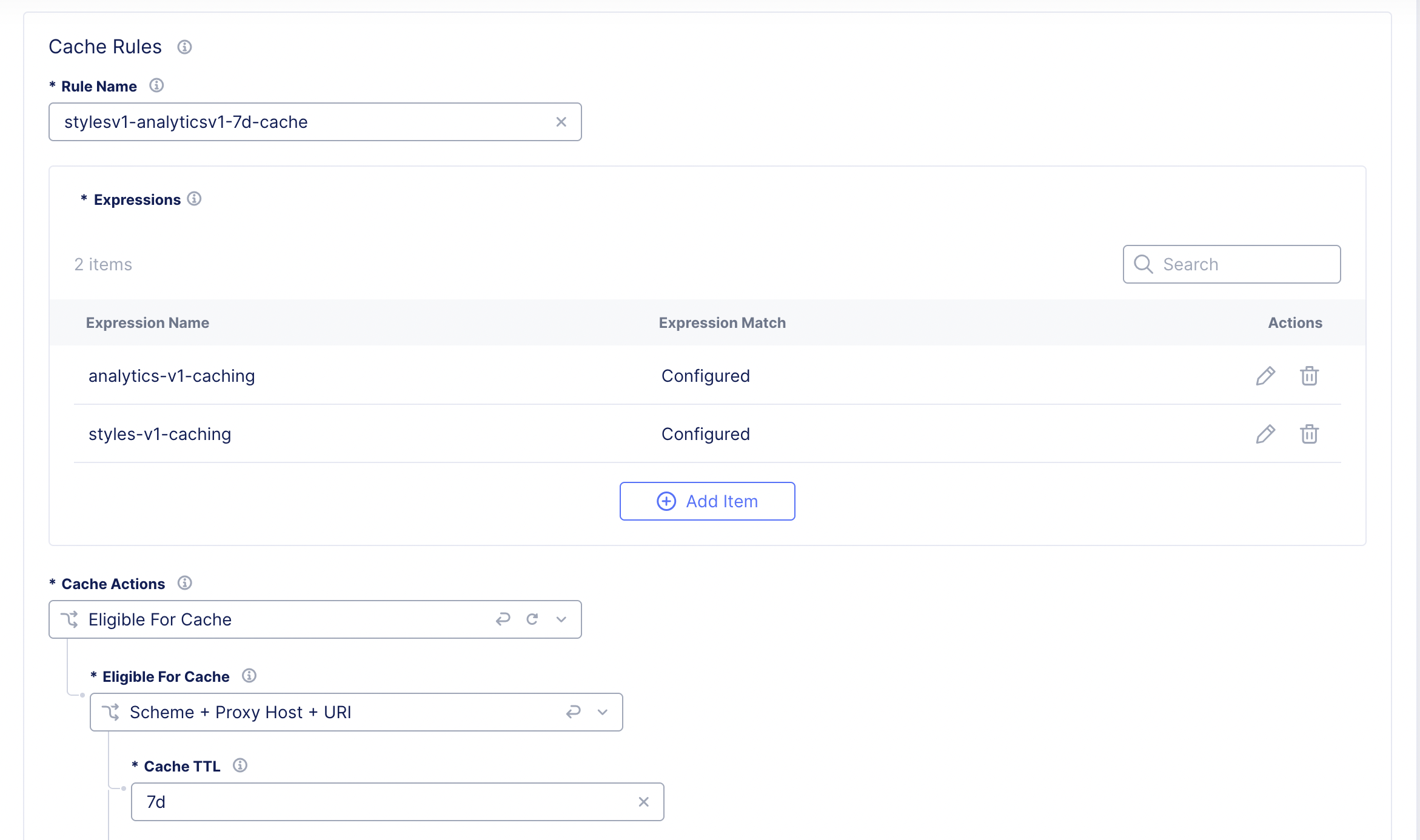
- Repeat steps #2 & #3 for the next file.
This will create a common caching policy of caching static assets for 7 days.
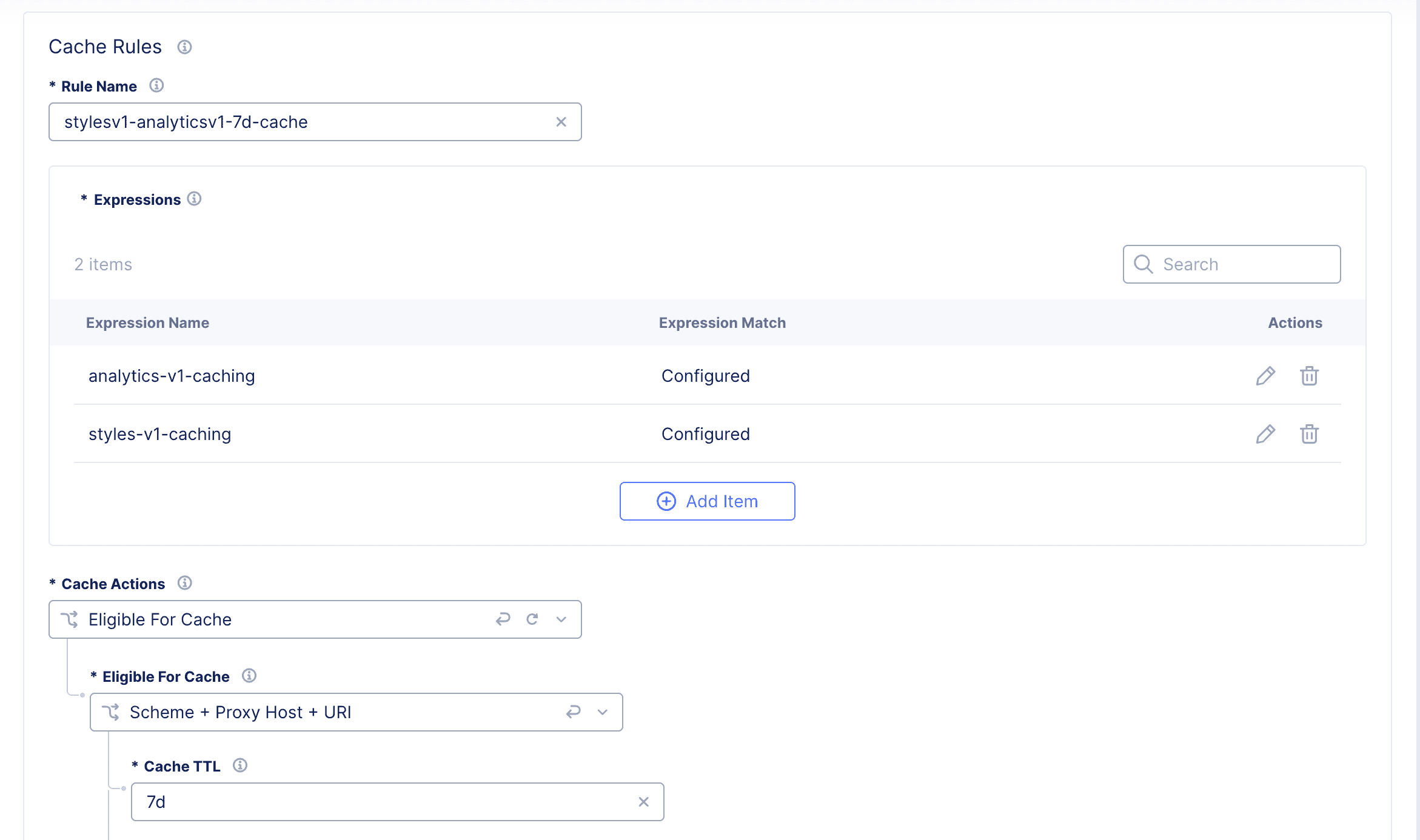
Figure: CDN Cache Rule Configuration