
User Personal Settings
Objective
This guide provides instructions on how to manage personal account settings in F5® Distributed Cloud Services.
Configure User Personal Settings
Perform the following to configure your personal settings. Personal settings are for individual users, and consists of configurations such as Two-factor authentication, passwords, profile pictures, and notification preferences.
Log into F5 Distributed Cloud Console and do the following:
Navigate to User Settings
- Open
F5® Distributed Cloud Console> selectAdministrationbox.
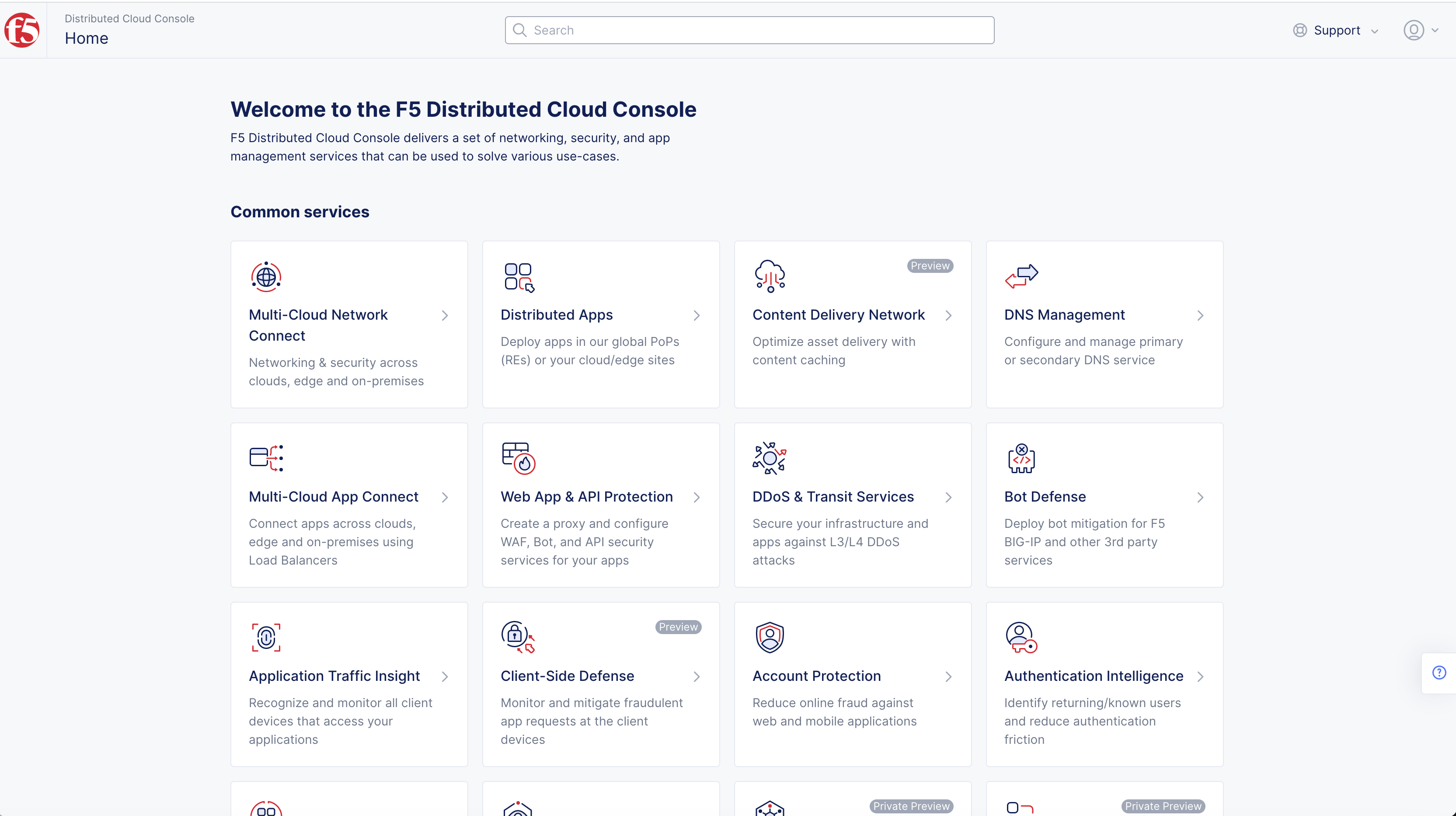
Figure: Homepage
- Select
Personal Managementin left-menu > selectMy Account.
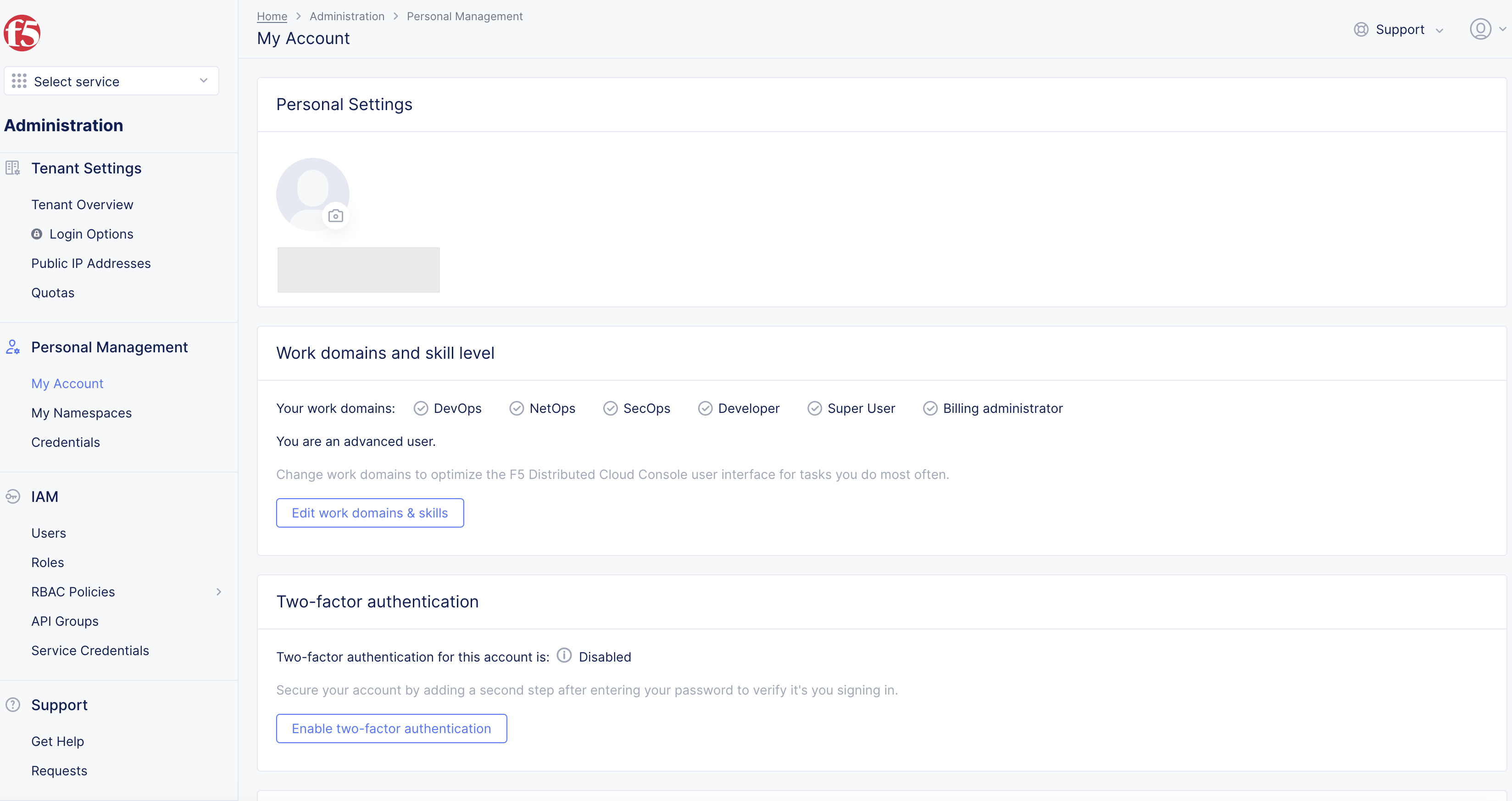
Figure: My Account Page
Set a Profile Picture
-
Select on the camera icon displayed under the
Personal Settingssection. -
Select
Upload Imageto upload image for your profile.
Note: Ensure that the image complies with the requirement displayed on the form.
- Select
Savebutton.
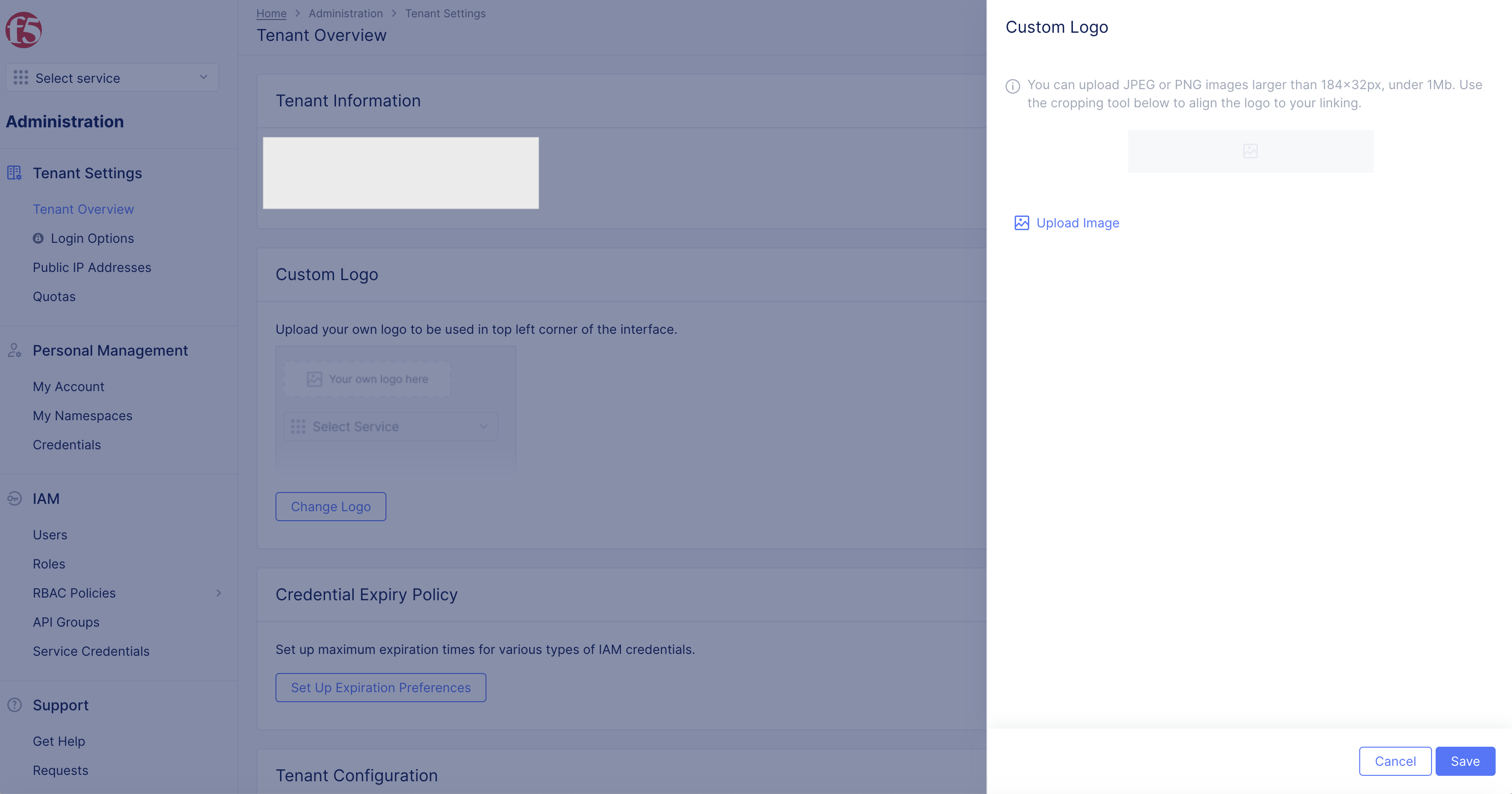
Figure: Profile Picture
Configure two-factor Authentication
- Select
Enable two-factor authenticationin theTwo-factor authenticationsection. Wait for the display to indicate that it isEnabling.
Note: You can use
FREEOTP,Google Authenticator, or your preferred application for two-factor authentication.
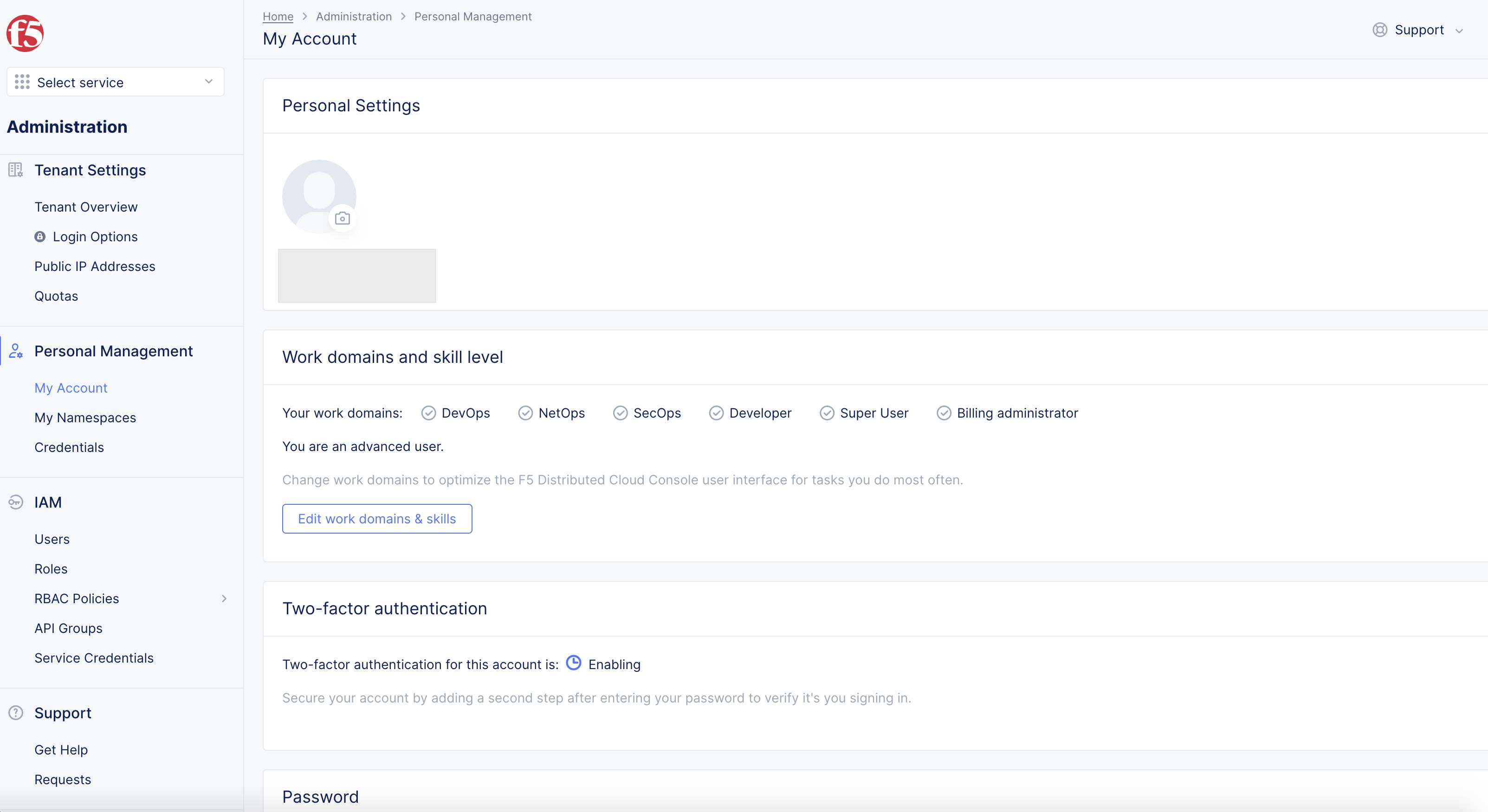
Figure: Two-factor authentication
-
Log out and log in to
Set up two-factor authentication.-
Install FreeOTP or Google Authenticator applications on your mobile and scan the barcode.
-
Enter one-time code in box.
-
Select
Submitbutton.
-
Note: You can use the
Disable two-factor authenticationoption in theTwo-factor authenticationsection to disable the authentication anytime.
Change Password
-
Select
Change Passwordin thePasswordsection to update your password. -
This will result in an email to the email address associated with the tenant.
-
Follow the instructions in the email to update your password.
Set Notification Preferences
-
Select
Manage Notification PreferencesinNotification Preferencessection. -
Specify notifications you prefer to receive.